
Install on Your Discord Server
Invite the Bot
Click Add to Discord
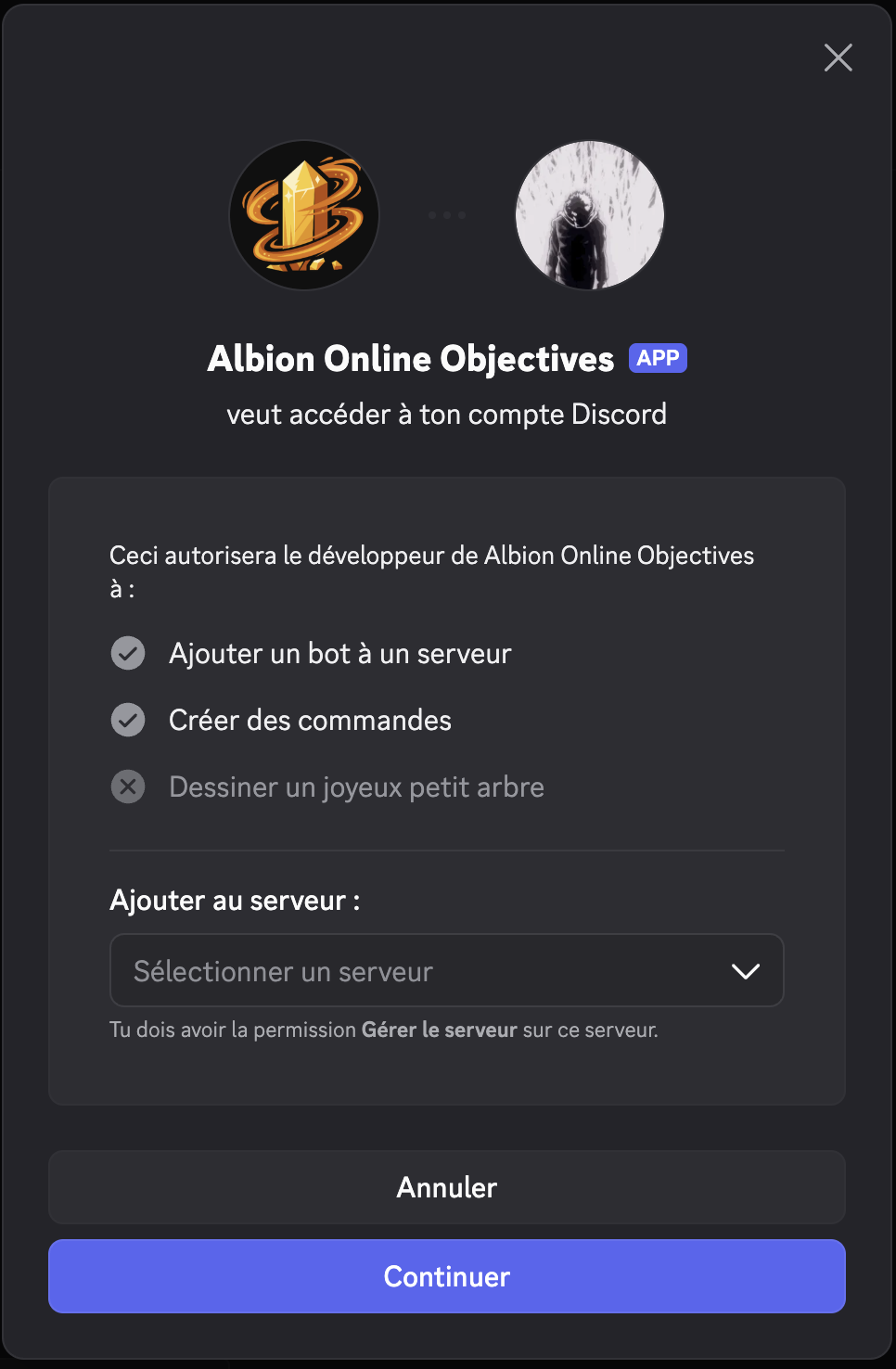
Select your server
Review permissions
Click Authorize
- 1
Click Add to Discord
- 2
Select your server
- 3
Review permissions
- 4
Click Authorize
Required Permissions
Albion Online Objectives (AOO) needs the following permissions to work properly:
| Permission | Reason |
|---|---|
| View Channel | Access channels where commands are used |
| Send Messages | Post objective lists and responses |
| Read Message History | Find previous bot messages to update them |
| Manage Messages | Delete outdated objective messages during refresh |
| Use Slash Commands | Register and respond to /add, /list, /remove |
Welcome Message
As soon as the bot joins, it posts a short welcome message introducing /add, /list and /settings. It picks your server’s system channel when it can post there, otherwise the first text channel it can write in. If no channel is writable, the message is skipped. The bot still works.
Optional Configuration
Albion Online Objectives works immediately after installation. Any member can start reporting objectives right away with /add: no setup command is required.
One setting is worth a minute of an admin’s time: /settings announcement-channel picks where release announcements land. Without it, they fall back to the last channel the bot was used in.
Announcements are on by default and never mention @everyone unless an admin explicitly turns that on.
Next Steps
Head to Report Your First Objective to learn how to use the bot.